Getting Started with WooCommerce Popup Notifications
We’re glad to welcome you to the world of WooBeWoo plugins, and create this tutorial to help you easily get started to use WooCommerce Popup Notifications by following a couple of steps.
WooCommerce Popup Notifications Installation
In WordPress, go to Plugins > Add New and search for Popup Notifications by WooBeWoo, or download it from wordpress.org. Click “Install”. When the installation is completed, click “Activate Plugin”. You will see a new plugin, ready to work in the admin menu.
Create a WooCommerce Popup Notifications
Now, let’s go ahead and create our first popup. In the WordPress menu, open Recent Sales Notifications for WooCommerce.
- Click “Add New Notifications”
- Enter the notification name.
- Click “Save”.
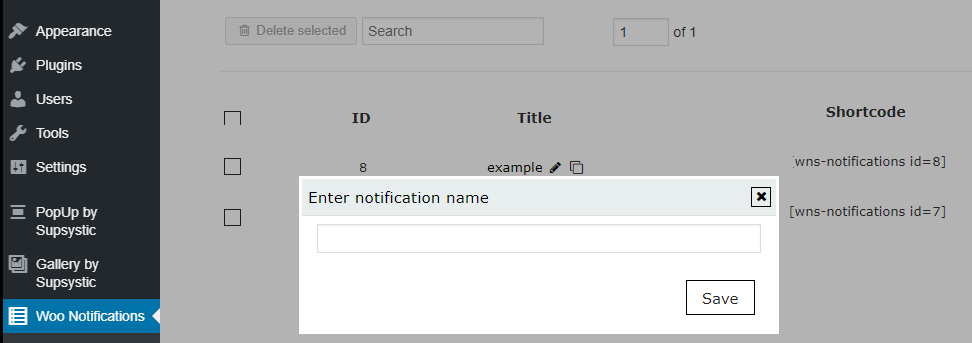
Set notification properties
All information about the Main settings and options you can find in our tutorial.
The plugin comes with settings, there you are able to fully customize the appearance and popup displaying rules:
Design
- Templates
- Styles
- Custom CSS
Design a unique recent sales popup that matches your store in many ways: different templates, 9 positions on screen, background colour and opacity, overlay, borders, text and Close button style settings.
Content
- Text
- Text rules
Promote any product, category, tag. Direct URL link allows visitors to click on the recent sales popups to view details in the page.
Add numbers to display the random quantity of users or products, add users name and location, time, text. To increase notifications’ authenticity, use the real user name or display selected users named randomly. Display location of the buyer according to visitor IP or display random nearest cities.
Rules to Display
Display rules parameters will help you determine how and when to display the notification.
Set a time, rules and condition to show: time on a website, time on page, distance scrolled, visitors inactive time, current date/time/day, popup for new visitors.
Don’t forget to click the Save button and check the created popup in Preview mode.
Add WooCommerce Popup Notifications to the site content
There are 2 different ways to add a popup to your site using code: table shortcode and table PHP code
Popup shortcode can be found on the left navigation menu if you click “Show All Notifications”
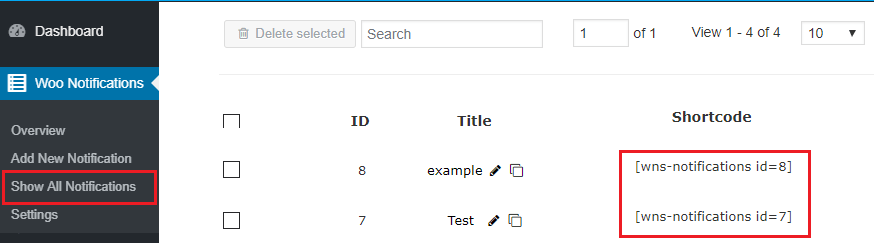
You can also find popup shortcode and PHP code if you open Notification to change settings. Simply choose a necessary code from the drop-down menu and copy the code.

In order to insert the notification, you need:
- Copy the shortcode.
- Paste the shortcode into your post or page and Popup Notification by WBW will automatically create a notification on your page according to its settings
- The PHP code can be inserted at any place of the page code. Besides, it can be inserted in the code of template of the theme, to display on all pages.
Still stuck?
Ask in the free support forum on wordpress.org. The developers answer there, and every answer helps the next store owner.