How to add a Product Table to a page
Once you’ve installed the WooCommerce Product Table plugin and set the Main settings, it’s time to add product tables to a page.
To add a product table, go to the Product Table Plugin and use shortcodes from the list of tables:

Also,you can open Product Table and copy shortcode above the main tabs: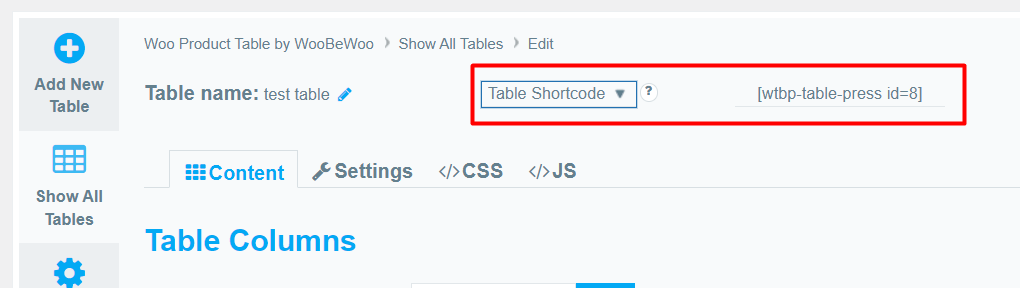
There are available Table Shortcode and PHP code
Copy Shortcode and paste it to your website content, then Product Table plugin will display the table you created on appropriate post/page using settings you tuned in this table.
Table PHP code can be inserted at any place of the page code, to display exactly in this place, for example in the header or footer of the page. Besides, it can be inserted in the code of template of the theme, to display on all pages.
Still stuck?
Ask in the free support forum on wordpress.org. The developers answer there, and every answer helps the next store owner.