
Currency Tooltip mode allows you to show the price cost of a product by other currencies. 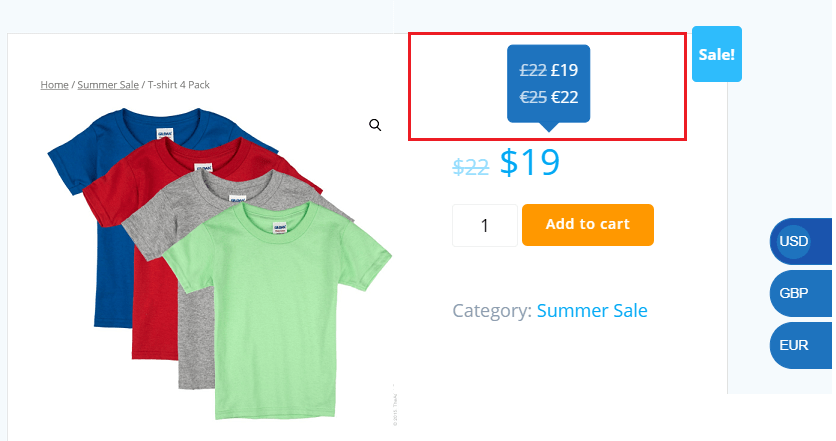
In this tab the following settings are available:
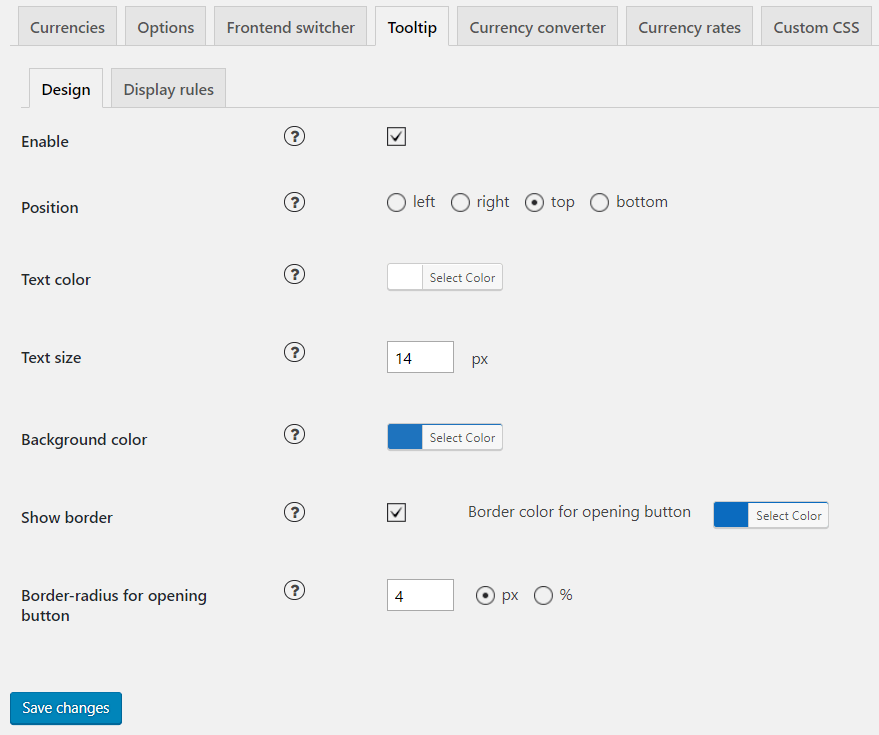
Tooltip design
- Position – choose a basic position of the panel.
- Text colour – сhoose panel text colour.
- Text size – сhoose panel text font size.
- Background colour – сhoose panel background colour.
- Show border – show panel outer border.
- Border-radius for an opening button – set an opening button border-radius.
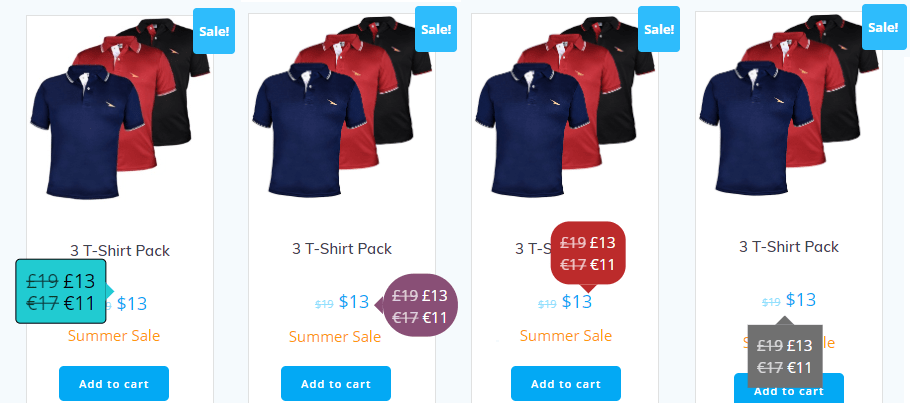
Display Rules
In the Tooltip display rules tab, you can set the conditions for displaying the tooltip.
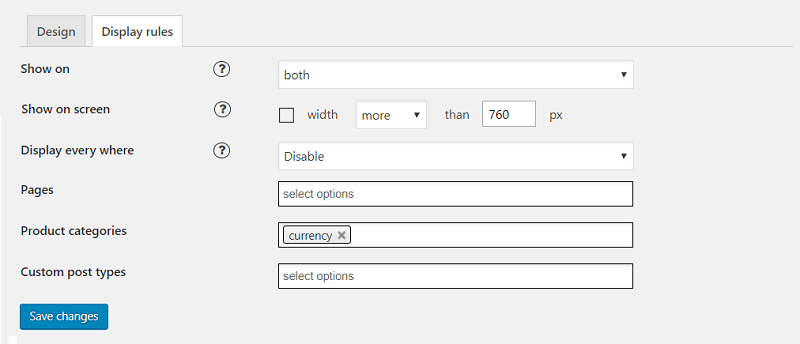
- Show on – select the devices on which the panel should be displayed.
- Show on screen – if this option is selected, the panel will be displayed only under the selected conditions, f.e:
-
Display everywhere – if enabled, the currency module will be displayed everywhere. If you need to display it only on several pages, you can select them in the list for Pages, for certain Product categories and for custom post types. Press Ctrl to select more than 1 page or post.