

Many WooCommerce store owners only realize they have a filtering problem after their store is already live.
Products are uploaded, money is invested, traffic starts coming in, but customers leave because they can’t quickly find what they’re looking for.
In fact, a large percentage of online shoppers abandon stores that lack proper filters or use poorly configured ones. Instead of browsing, users feel overwhelmed by too many options, irrelevant results, or confusing navigation.
A well-designed product filter is not just a search tool. It helps customers discover products faster, improves user experience, reduces bounce rate, and directly impacts conversions and SEO performance.
In this article, we’ll explore the most common WooCommerce product filter problems, explain why they hurt sales, and show you how to fix them using practical UX and technical solutions, with real examples from advanced WooCommerce filtering plugins like WooCommerce Product Filter by WooBeWoo.

Common WooCommerce Product Filter Problems
Let’s take a closer look at the problems faced by the owners of online stores, but few people think about them and tell you how to fix it
- The Filter Button Is Hard to Find
Why This Is a Problem?
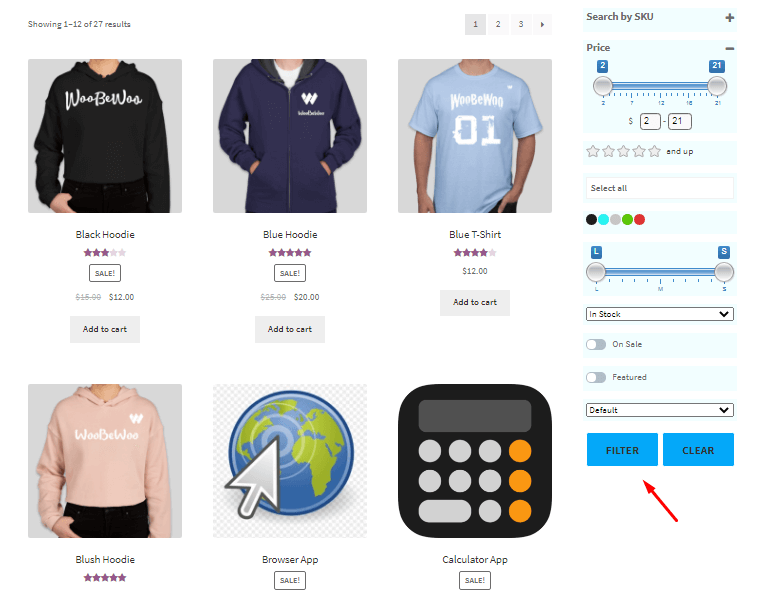
It is quite obvious that this action button should always be in the visitor’s sight. This rule must be followed even if the filter itself contains many parameters and takes up more than one screen. In general, all action buttons should be clearly visible and as accessible as possible
How to fix it?
The WooCommerce Product Filter plugin provides an option for it: you can select the locations of absolutely all buttons. To do this, go to settings-> buttons and change the “button position” option.
Our WooCommerce Product Filter plugin can help with this.
Pro Tip
Use Auto Filtering and Ajax Search to ensure that clients receive filtering results instantly by clicking on the desired filtering option.
- No Option to Reset Individual Filters
Why This Is a Problem?
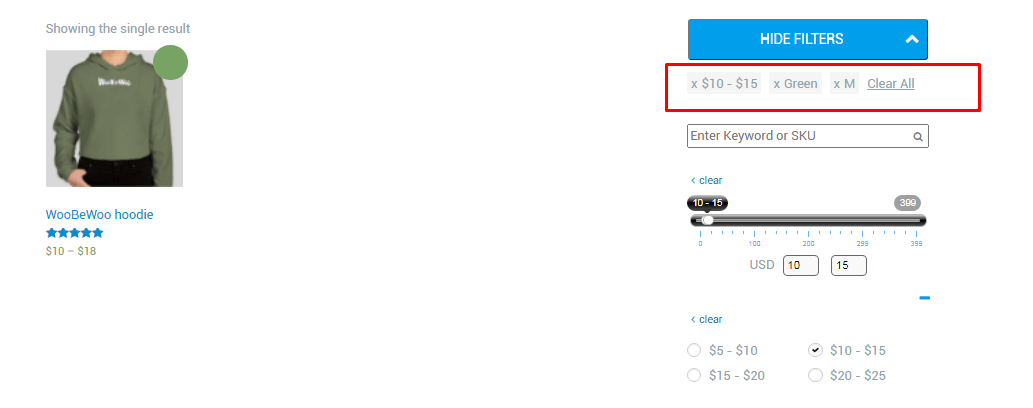
Often, developers forget about the need to provide the visitor with the ability to reset only part of the criteria, placing only the “reset filter” button. In the design of online stores with a large offer of products and when using multiple filters for the selection of products, to improve convenience, you should put the filtering criteria selected by the visitor on a separate panel with a characteristic cross to cancel the accounting of this parameter.
How to fix it?
Turn on advanced option “Display selected parameters of filters”.
Pro Tip
Also enable the Display “Clear All” option to be able to delete one by one or all selected parameters.
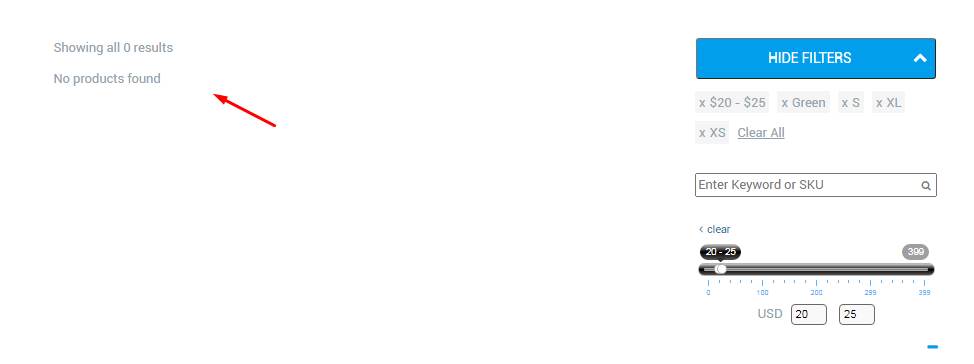
- Zero Results or “No Products Found” Message
Why This Is a Problem?
There is nothing worse for a visitor who chooses and fills in the search criteria than getting irrelevant or zero results. Therefore, if the value “0” is returned by any filtering criterion, then it should be excluded from the list of product characteristics available for selection in the filters of websites or rendered as inactive following the design. The lack of products required by the visitor, even with a diverse range of online stores, always negatively affects his degree of satisfaction.
How to fix it?
Enable option “Show parameters without products as disabled”, for that go to options->content.
Pro Tip
In a pinch, set a beautiful text that customers will see if nothing will be founded on their request. To do that, go to Options -> Content and set the text in the field “Set no products found the text”
- Incorrect Multi-Selection Logic (AND / OR)
Why This Is a Problem?
The question lies in the use of logical operators “OR” / “AND”. It is necessary to check how the filter of the selection of commodity items in the online store functions when the visitor simultaneously selects “red” T-shirts of size “S” – either only all the “red” T-shirts of size “S” will be shown, or all “red” of all sizes, or all sizes “S” in any color.
How to fix it?
In most cases, it preferably displays the exact result of filtering goods, which is especially important for online stores with a large assortment, that is, only “red” size “S”. This option demonstrates the maximum customer satisfaction rate. But the use of the second option also takes place if the expediency of such an algorithm for the filter operation is due to the specifics of the product or other features of the site.
For more on this, see our guide: WooCommerce Product Filter: What It Does to Your Store’s Sales (And How to Get It Right).
You can configure this option both in the filter settings and globally by going to Options -> Content and setting the desired value for the Multiple categories’ logic option.
- Poor Attribute Presentation (UX Issue)
Why This Is a Problem
For sure, a lot of people have thought about how exactly to display this or that attribute, because they all radically differ depending on the direction of your store, be it the color of the car or the size of new sneakers.
And many stores display this as just a list that your potential buyer may well not notice.
How to fix it?
WooBeWoo has taken a very painstaking approach to attribute mapping, and in this product filter plugin you can use nine different ways, such as:
Checkbox list; Radio Buttons list; Dropdown; Multiple Dropdown; Colors; Text; Buttons; Switch; Slider.
With such capabilities, it is not difficult to guess how exactly it is more logical to use the display of an attribute filter, for example, Color – to display color attributes, or Slider to display a range of Hoodie size options and other things.
Pro Tip
Also, the WooCommerce product filter is ACF compliant and fully compatible with CPT UI plugins, and you can use attribute filter to sort custom taxonomies by simply creating a taxonomy in the above plugins and it will appear in the attribute selection in the attribute filter.

- Missing Loading or Progress Indicator
Why This Is a Problem
An immediate response is undoubtedly the best option for any application, but sometimes it is not possible. (Slow performance of the system may be due to a weak Internet connection, or the operation itself may be complex and time-consuming.) In such cases, in order to reduce the load on the user, you must confirm to the user that the system is working properly, busy working on his task and that there is real progress.
How to fix it?
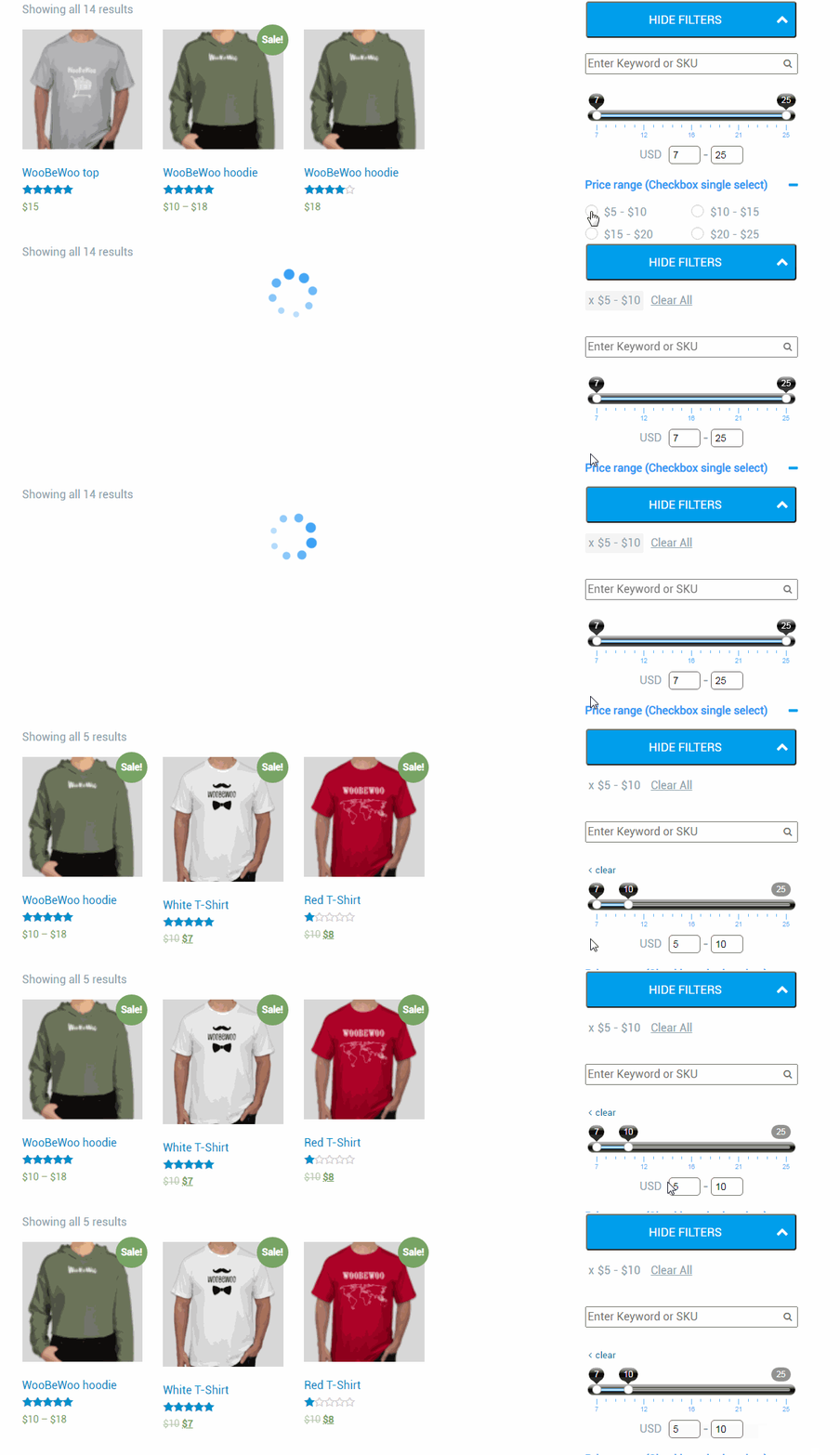
Users want to control the system they are using. “Loader” is one of the most popular forms of providing system status to the user.
Fortunately, WooCommerce Product Filter plunged into solving this problem more than head-on – to brighten up customer expectations, a whole section of options is highlighted here. Go to Options-> Loader and completely customize your Loader and Overlay
For step-by-step setup details, see our How to Configure CSS for Product Filter? documentation.
Pro Tip
This plugin can upload your own Loader, download it, and while waiting, your customer will see an additional advertisement of your brand, logo, or other.
Here is an example of a WooBeWoo loader, can you agree that it is better to look at this more than at an unknown symbol?
- No Multi-Select Options
Why This Is a Problem
Most product filters work on the principle of one choice = one filtering. And according to user polls, this drawback is that they are most enraged while choosing a product because they constantly have to come back and choose again.
But this is the main task of the product filter – the filter must lead the buyer to the product he needs, alternately choosing the necessary criteria, and superimposing them on each other. And as a result, here they are the best purchase candidates.
How to fix it?
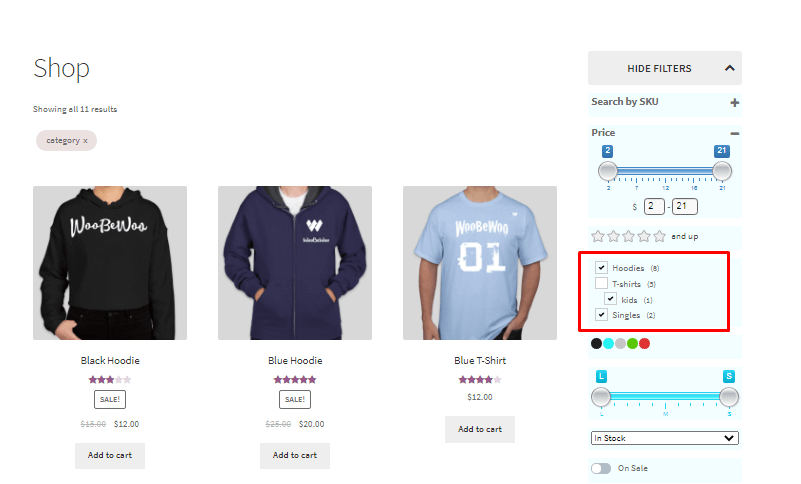
WooCommerce Product Filter has a very useful option like multiple choice both in the dropdown list and in the checkbox list.
Let’s show an example of a category filter:
Go to the category filter editing and select the option you need in the Show on frontend as an option.
Pro Tip
We also recommend that you configure the Show hierarchical option to more accurately display the filtering of parent and child categories.
- Filters Are Too Long or Overloaded
Why This Is a Problem
Many users experience the inconvenience of working with large filters because store organizers often make filters for absolutely all available parameters.
How to fix it?
Several points can be applied here:
1) Firstly, you can set the length of the blocks and the length of the filter itself in the settings.
2) Secondly, do not add all filters at once, think over your concept, and approach the question from the buyer’s side. by what parameters you could search for this or that product yourself. And based on this, add the filters your store needs. For example, if you sell an endless product (guitar lessons, etc.) then you will hardly need a filter “by Stock Status”.
3) Use the Show More (full list) option. Sometimes there are too many categories, and the display of the full list will look unaesthetic. To enable it, go to Options-> Content and enable Display “Show more” and, if you wish, select the Full List option to open the full list, not the scrollbar.
How Product Filters Affect SEO
Product filters don’t only impact user experience, they also affect how search engines crawl and index your store.
Poorly configured filters can:
-
Generate duplicate URLs
-
Waste crawl budget
-
Cause indexing issues
-
Negatively affect Core Web Vitals
When filters are optimized correctly, they:
-
Improve internal linking
-
Help search engines understand product categories
-
Reduce bounce rate
-
Increase time on site
This is why UX-focused filtering is also an SEO strategy, not just a design choice.
Conclusion
Of course, the need to use feature filters in WooCommerce is undeniable. And the nuances of their development are primarily determined by the concept of the website, its purpose, assortment, and design. If they are needed, it is imperative to take into account every little thing in setting them up, think over every possible path of the client to the product he needs. To do this, the WooCommerce Product Filter By WooBeWoo plugin has filters for absolutely any product search parameter. And the correct organization of options and product filter design will significantly increase the satisfaction of potential buyers and significantly reduce the conversion path. Good luck and never hesitate to make mistakes, because those who do nothing ever make mistakes.