

Running a WooCommerce tech store means dealing with a lot of details.
One phone can have different storage options, colors, and versions.
Laptops have dozens of specs.
Headphones come in wired, wireless, noise-canceling, and everything in between.
Without a clear way to sort through all this, customers get lost fast.
That’s where a Product Filter for WooCommerce Tech Stores becomes essential.
If you sell phones, laptops, tablets, cameras, or accessories, this filter keeps the whole shopping experience simple and organized.
It fits naturally into tech catalogs, making it easier for visitors to find the exact device or gadget they want.
Meet the WoobeWoo Product Filter (Built for Electronics & Tech)
Tech shoppers don’t just look for “a phone”.. They look for 128GB storage, 6.7-inch screen, fast charging, or a specific brand.
This plugin helps them find exactly what they want without digging through every product.
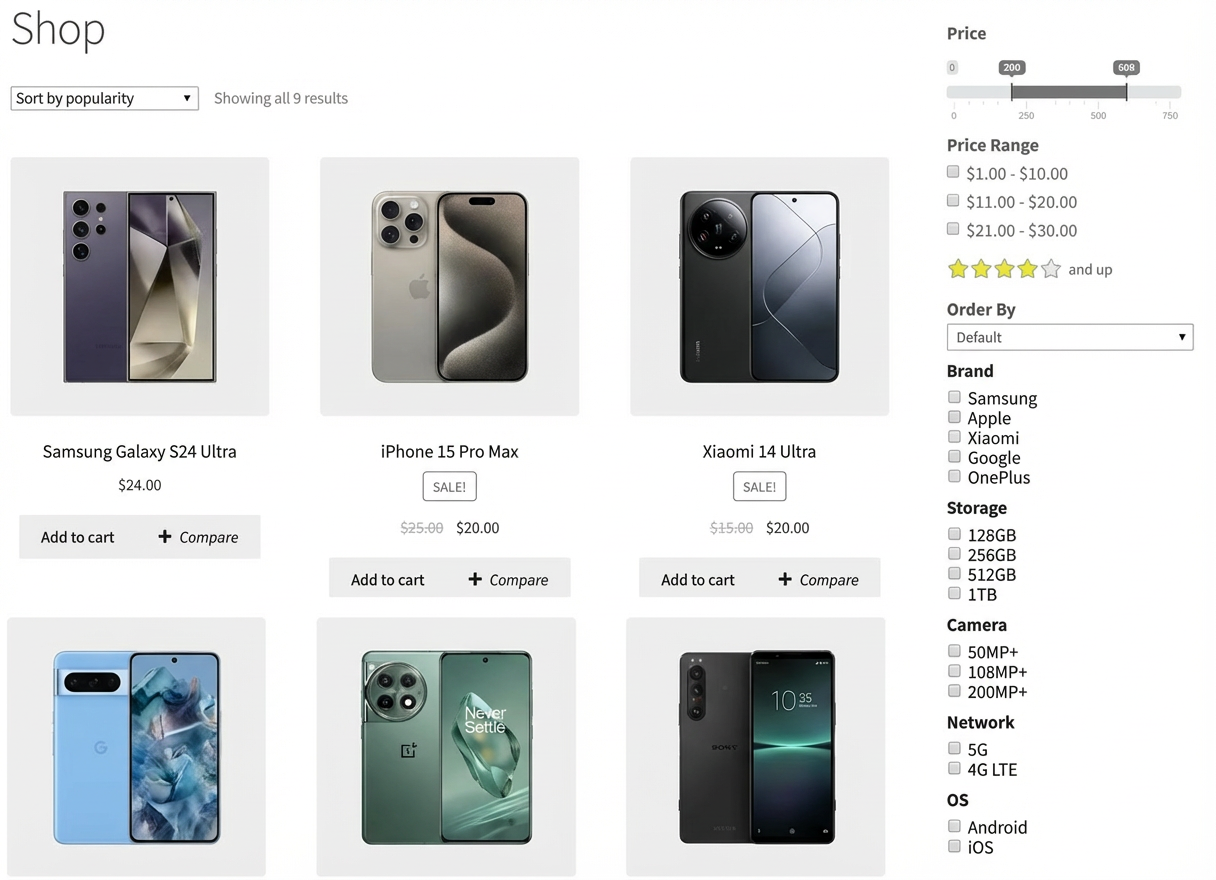
What makes the WoobeWoo filter a great match for tech stores is how naturally it handles specs.
You can let shoppers filter by storage size, RAM, brand, screen type, battery capacity, or anything else you list.
It updates results instantly, which makes the browsing experience feel quick and clean, something tech buyers really appreciate.
Because it works smoothly with WooCommerce, it becomes an easy electronics filter plugin that organizes your entire catalog.
This gadget store filter helps customers narrow things down fast.
And if your shop carries a lot of models or variations, the filter acts like a dependable electronics catalog filter, keeping everything tidy and easy to navigate.
Simply put, it’s built to understand how tech shoppers think, and it gives them a simple way to reach the right product.
Key Features That Matter in Tech Stores
Tech shoppers care about details, they compare specs, check storage options, look at price differences, and want to know if a device is the right fit for their needs.
The WoobeWoo Product Filter makes all of this simple and clear, acting as an electronics filter plugin, gadget store filter, and full electronics catalog filter all at once.
Here are the features that matter most in electronics and tech stores:
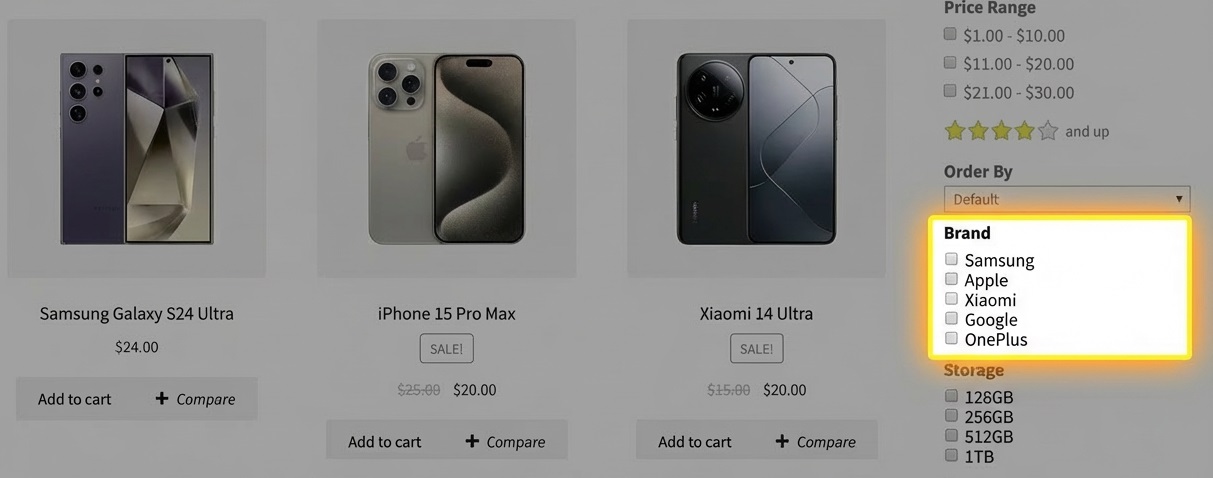
- Filter by Brand
Let shoppers pick their favorite brands instantly, Apple, Samsung, Sony, Lenovo, and more.
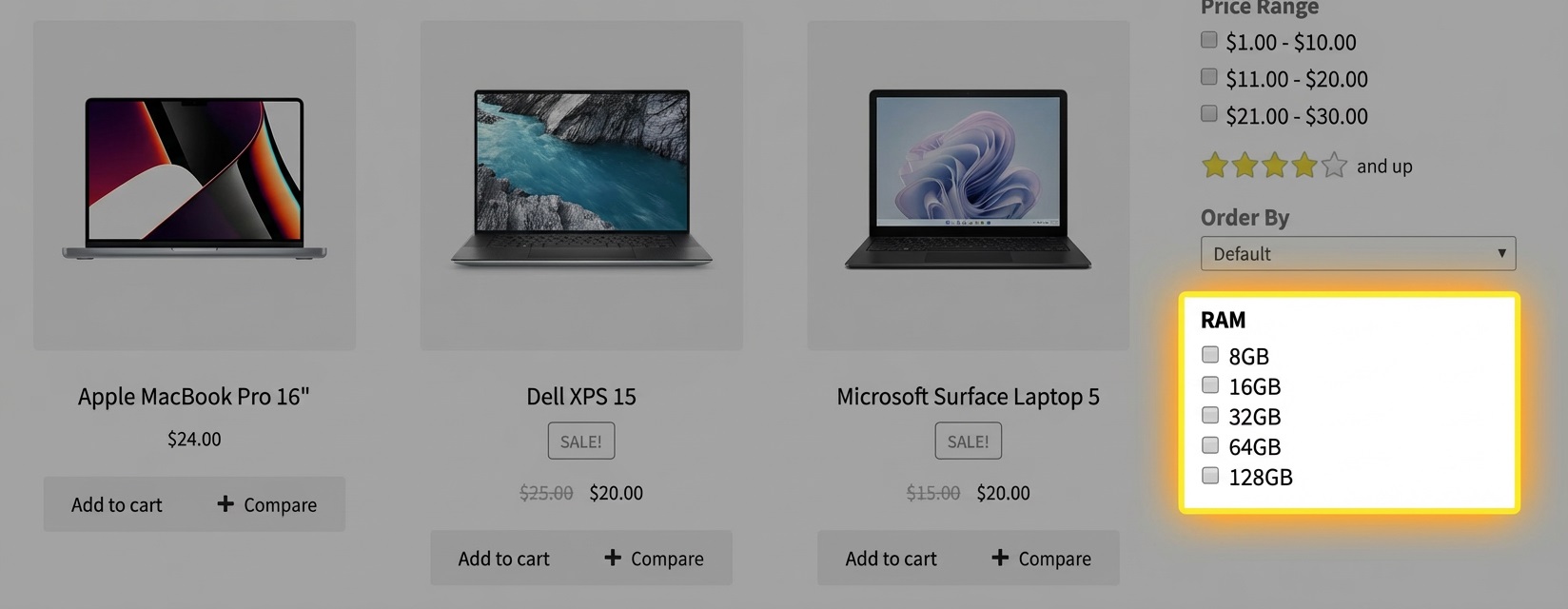
- Filter by Specs
Customers can sort by things like RAM, processor type, screen size, battery life, camera specs, or any technical detail you add.
- Storage Options
Perfect for phones, tablets, and laptops. Shoppers can choose from 64GB, 128GB, 256GB, 512GB, or whatever you offer. - Price Range Slider
A simple slider helps visitors choose the budget they’re comfortable with. No guesswork, no scrolling through overpriced items.
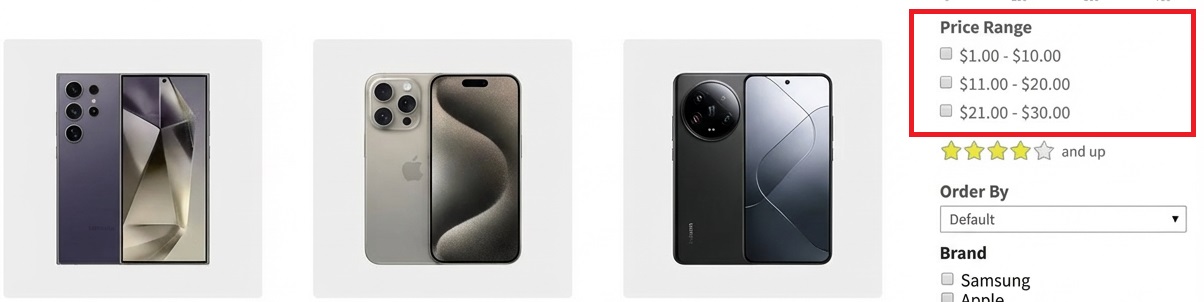
- Compatibility Filters
Useful for accessories, filters for device model, connector type, or supported versions help people find the right match fast. - Instant Results (AJAX Filtering)
No page reloads, as soon as a visitor clicks a filter, results update instantly. This makes the experience feel fast and smooth. - Mobile-Friendly Layout
Many tech shoppers browse on their phones, the filter stays clean, clear, and easy to use on any screen size. - Works With Large Catalogs
If your store sells dozens or hundreds of devices, this filter keeps everything organized without slowing your site down.
These features make the WoobeWoo Product Filter a strong fit for any WooCommerce tech store that wants to give customers a simple, clear way to find the right device or accessory.
How It Works? Simple Setup, Zero Overwhelm
You don’t need to be a tech expert to set up the WoobeWoo Product Filter. The steps are simple, and everything fits naturally inside your WooCommerce dashboard. Here’s the quick version of how to get it running for your tech store:
1. Get the Plugin
Start by visiting the WoobeWoo Product Filter page and choosing the plan that fits your store.
Once you complete the checkout, the PRO file will be available in your account.
2. Install the Free Version in WordPress
Go to Plugins → Add New, search for “WooBeWoo Product Filter” and install the free version, this is required before adding the PRO version.
3. Upload the PRO Version
In your WordPress dashboard:
-
Go to Plugins → Add New → Upload Plugin
-
Select the ZIP file downloaded from your WoobeWoo account
-
Click Install Now, then Activate
4. Activate Your License
Open the License tab inside the plugin menu.
Enter your license key and email, then click Activate to unlock all PRO features.
5. Create Your First Tech Filter
Inside the plugin dashboard:
-
Click Add New Filter
-
Choose the options you want customers to sort by brand, specs, storage, compatibility, price, and more
-
Save your filter
6. Add the Filter to Your Shop Page
Place it where it works best:
-
In the sidebar
-
Above your product grid
-
Using a shortcode
-
Inside Elementor
It connects smoothly with WooCommerce, making the filter feel like part of your tech store’s layout from the start.
If you want a full, step-by-step walkthrough, you’ll find a detailed guide here:
How to create a product catalog for your tech shop?
Download the Product Filter for WooCommerce Tech Stores
If you want your WooCommerce tech store to feel easier to browse, especially when you’re selling multiple versions of the same phone, laptop, or gadget, this filter is one of the quickest improvements you can make.
It keeps your catalog clean, helps customers make decisions faster, and creates a better shopping experience overall.

You can download the Product Filter for WooCommerce Tech Stores directly from WoobeWoo, set it up in a few minutes, and see the difference right away.
When visitors can sort by brand, specs, storage, and price without any confusion, they’re more likely to stay, explore, and buy.
If you’re ready to give your electronics catalog a smoother path from browsing to checkout, this plugin is a solid place to start.
Frequently Asked Questions
1. Does the WoobeWoo Product Filter work with large electronics catalogs?
Yes, the plugin is built to handle large product lists with many variations.
It supports fast AJAX filtering, which keeps your store quick and responsive even with hundreds of items.
2. Can customers filter by technical specs like RAM, storage, or screen size?
Absolutely, you can create filters for any attribute in your WooCommerce store, including RAM, CPU, storage size, battery capacity, display type, compatibility, and more.
3. Does the filter work with different themes and builders like Elementor?
Yes, the plugin works with almost all WooCommerce-compatible themes and integrates well with Elementor, Gutenberg, and other page builders.
4. Can I add color, brand, or icon-based filters?
Yes, you can create filters using labels, icons, swatches, or dropdowns, this is especially helpful for filtering brands or displaying color variations.
5. Does the filter slow down my store?
No, the plugin uses optimized AJAX loading, which updates products instantly without reloading the entire page, this keeps your store fast and smooth.
6. Do I need coding skills to set it up?
No coding is needed, you can create and customize all filters from the WordPress dashboard using simple options and drag-and-drop controls.
7. How do I add the filter to my shop page?
You can place it through:
- A shortcode
- A widget (sidebar)
- Elementor
- Or directly in the product archive layout
All methods are available in the plugin settings.
8. Can I use the filter on category pages?
Yes, you can show the filter on your main shop page, category pages, or any custom product listing page.
9. Is there documentation to help me set everything up?
Yes, WoobeWoo provides step-by-step documentation, including a full guide on building and placing filters in tech stores.
10. Is this filter suitable for accessories as well as devices?
Yes, whether you’re selling phones, laptops, chargers, cables, or cases, the filter helps customers sort by compatibility, type, connector, model, and more.
For related reading, see our guide: Elementor and WooCommerce Filter: A Perfect Match for Your Online Store.