

People visiting an auto parts store usually aren’t there to look around, they’re trying to solve a problem fast.
They might need:
-
Brake pads that fit a specific year and model
-
A compatible oil filter (not almost compatible)
-
A replacement sensor with the right connector type
But in many stores, the shop page looks like one long wall of products.
In a big auto parts catalog, a lot of items look similar at first glance, and the differences are often hidden in small details.
So shoppers end up doing detective work:
-
Scrolling page after page
-
Opening multiple products just to compare specs
-
Getting stuck on the same question.. (Will this fit my car, or not?)
When that uncertainty shows up, many people don’t risk it, they leave.
Turn Your Auto Parts Catalog Into a Guided List
A good store doesn’t just list parts. It helps people narrow down the options until only the right ones are left.
That’s exactly what Product Filter for WooCommerce Auto Parts Stores is meant to do.
Our WooCommerce Product Filter plugin can help with this.
The WoobeWoo WooCommerce Product Filter adds simple filters that shoppers can use to cut through a crowded catalog in seconds.
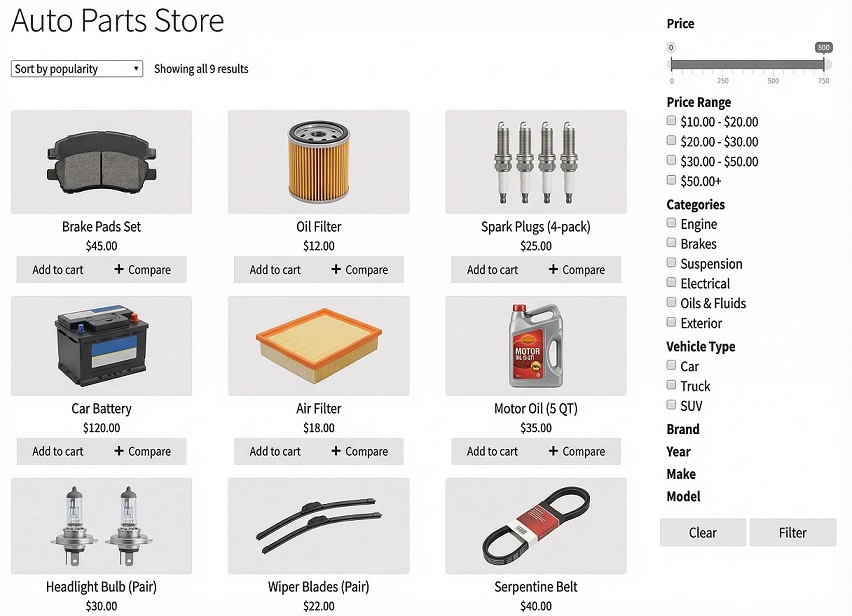
Instead of scrolling through everything, they pick what matches their car or need, and the results update right away.
It doesn’t change how you run your store, it just makes the finding part much easier.
Filters That Actually Matter in a WooCommerce Auto Store
Auto parts shoppers don’t want more choices, they want the right choice quickly.
Here are filters that usually make the biggest difference in a WooCommerce auto store:
- Filter by Vehicle Details (Make / Model / Year)
This is the big one! If you sell parts that depend on the car, this is how you stop wrong clicks early and make car parts browsing feel clear. - Filter by Part Type (Category)
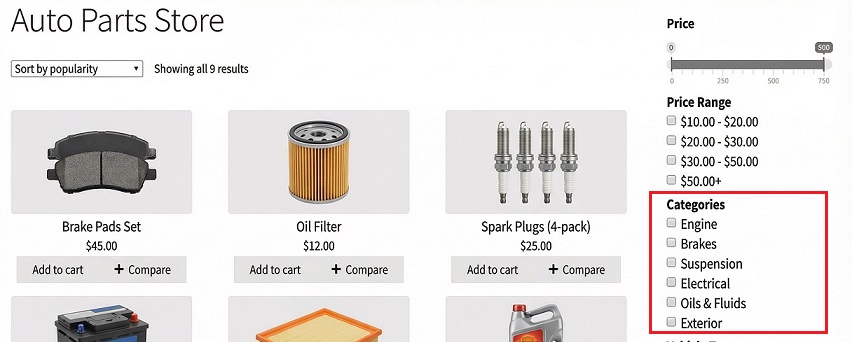
Brakes, filters, lights, suspension, batteries. Category filters help people jump straight to the right part group without digging.
- Filter by Key Attributes (Specs that matter)
Auto parts often come down to details, examples:-
Size/diameter
-
Voltage/wattage
-
Material
-
Connector type
This is where filters help shoppers avoid guessing.
-
- Filter by Brand
Some buyers stick to brands they trust, a brand filter saves them time and helps returning customers move faster. - Filter for Accessories (so they don’t mix with parts)
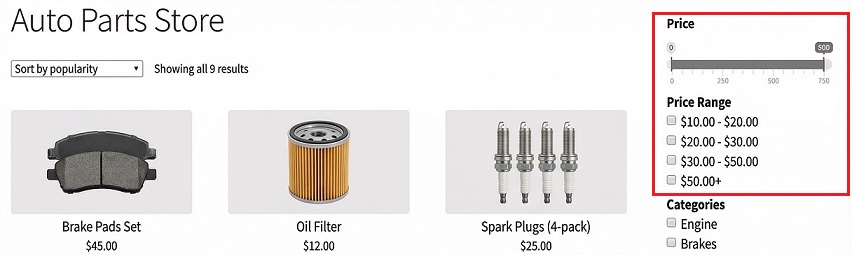
If your store sells add-ons too, a dedicated car accessories filter keeps accessories easy to find without distracting someone who’s hunting for a specific part. - Filter by Price Range
Not everyone shops the same way, price filters help shoppers stay in budget without clicking 20 products.
From Install to Live Filters in a Few Minutes
You don’t need special skills to set this up, keep it simple:
-
Get the plugin
Download the WoobeWoo WooCommerce Product Filter from the official page. -
Install + activate
WordPress Dashboard → Plugins → Add New → Upload Plugin → Install → Activate -
Create your first filter
Open the Product Filter menu → Add New → create what to filter by (category, brand, attributes, price). -
Place it where people will use it
Most stores place filters:
-
In the sidebar
-
Above the product list
-
On category pages (like Brakes or Lights)
-
Test it like a shopper
Pick a car, choose a category, set an attribute, and make sure the results feel correct and easy.
If you want a full walkthrough with examples, you’ll find it here:
How to add WooCommerce product filter to the shop?
If you prefer visual content, you can watch this short video.
Make Finding the Right Part the Easy Part
A smoother shop experience doesn’t always require a redesign.
Sometimes it’s just giving people a better way to narrow down the list.
If your store has a growing catalog and you want shoppers to reach the right part faster, start with the WoobeWoo WooCommerce Product Filter.
Download it, set up a few filters that match how your customers shop, and let the catalog feel organized from the first click.
FAQ (Quick Answers)
1) Can I filter by car make, model, or year?
Yes, you can build filters using attributes you already use for vehicle details.
2) Will this work with a large auto parts catalog?
Yes, it’s built for stores with many products and variations.
3) Can shoppers use multiple filters at the same time?
Yes, they can combine category + brand + attributes + price together.
4) Does it update results without reloading the page?
Yes, filters update instantly, which keeps browsing smooth.
5) Can I use it for accessories too?
Yes, it works well for accessories, and you can create a clear accessories filter.
6) Do I need coding to set it up?
No, everything is managed from the WordPress dashboard.
7) Can I show filters on category pages (like Brakes)?
Yes, you can display filters on the shop page, category pages, or custom listings.
8) Will it work with my WooCommerce theme or builder?
In most cases, yes. It’s designed to fit common WooCommerce setups.
9) Will the filter affect my website’s loading speed?
No, filtering happens without reloading the page, keeping browsing smooth and fast.
10) Is there documentation to help with setup?
Yes, WoobeWoo provides step-by-step guides that explain installation, filter creation, and placement clearly.
For related reading, see our guide: FiboFilters Alternative: Is WooBewoo a Better Fit for Your Store?.