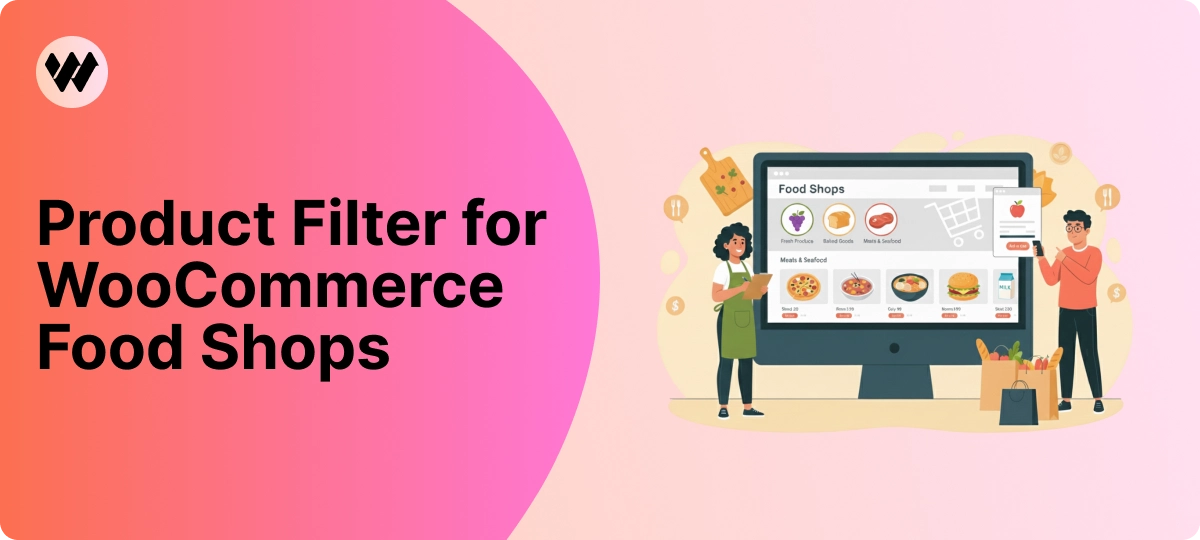


Online grocery stores can get crowded very quickly, there are fruits, vegetables, snacks, frozen items, organic products, and dozens of brands for the same type of food.
When everything is listed together, shoppers often spend more time searching than actually buying.
That’s where a Product Filter for WooCommerce Food Shops becomes important.
If your store sells groceries or organic food online, a clear filter helps shoppers reach the right products without frustration.
And when finding items is easy, people are more likely to stay, browse, and complete their purchase.
A Better Way to Organize Food Products Online
The WoobeWoo Product Filter helps food shops bring order to busy grocery catalogs.
Instead of showing everything at once, it lets shoppers narrow the list to what actually matters to them, quickly and without confusion.
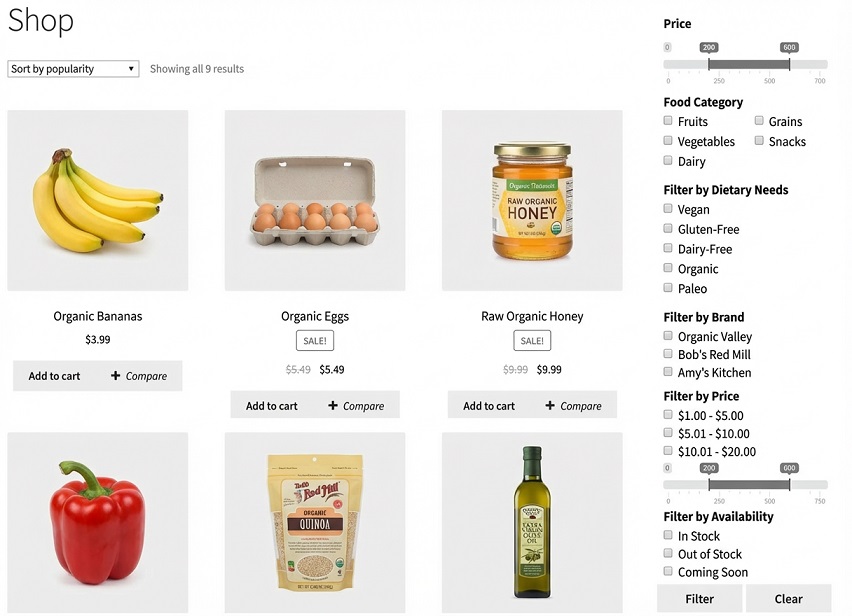
Think about someone shopping for groceries after a long day, they might want organic pasta, gluten-free snacks, or items within a certain budget.
With clear filters in place, they don’t have to scan dozens of pages to get there, they make a few choices, and the list updates right away.
For store owners, this means fewer abandoned visits and more focused shopping.
For customers, it simply feels like the store “gets” what they’re looking for.
It’s a practical way to keep food products easy to find, without changing how your store looks or how you manage your items.
Filters That Actually Help Grocery Shoppers Decide
Grocery shoppers usually come with a short list in mind, they want to grab what they need and move on.
The WoobeWoo Product Filter gives them clear, useful filters that match how people really shop for food.
Here are the filters that make the biggest difference in food shops:
-
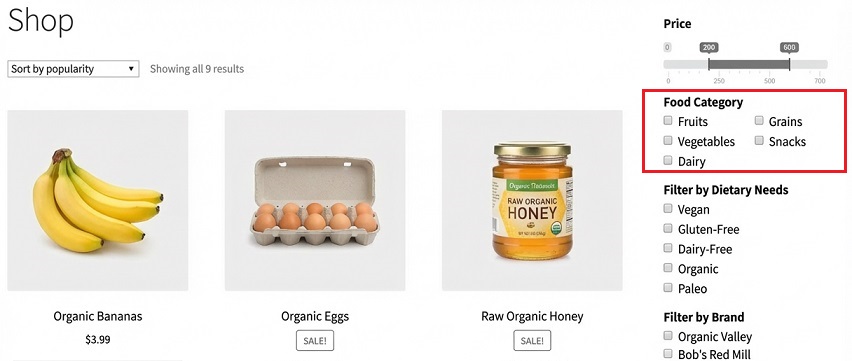
Filter by Food Category
Fruits, vegetables, snacks, frozen food, pantry items, this is the starting point for most shoppers. It’s the foundation of any good grocery store filter plugin.
-
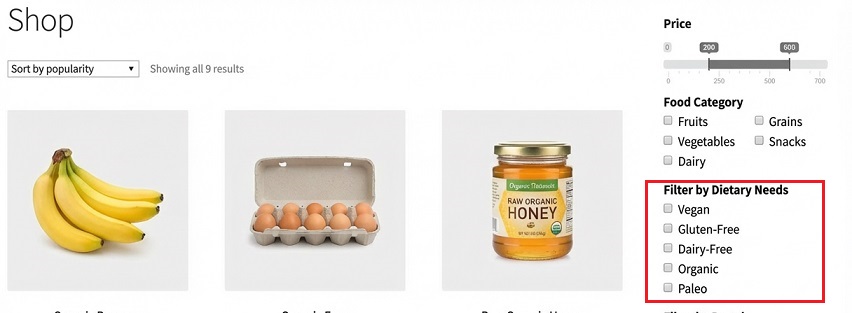
Filter by Dietary Needs
Organic, vegan, gluten-free, sugar-free, shoppers can quickly find food that fits their lifestyle without checking every label.
-
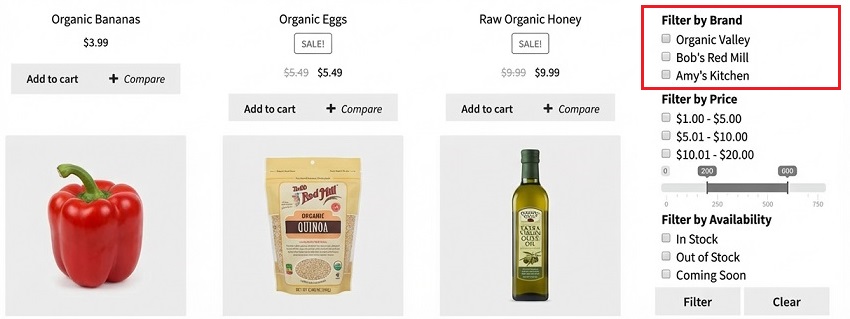
Filter by Brand
Many people stick to brands they trust. This option turns your store into a more reliable food shop product filter, especially for repeat buyers.
-
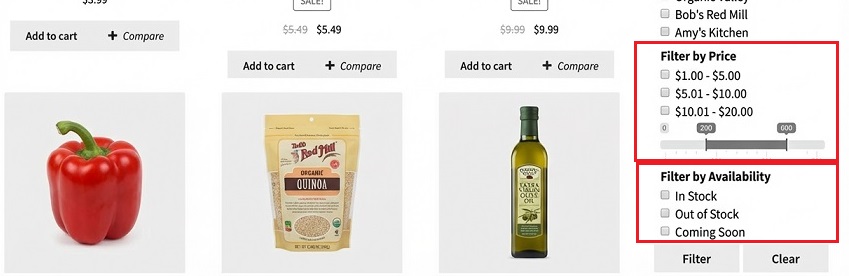
Filter by Price
A simple price range helps customers stay within budget, which is especially important for weekly grocery shopping. -
Filter by Availability
Showing only in-stock items saves time and avoids frustration.
-
Instant Results (No Page Reloads)
As shoppers click, results update right away. This keeps browsing smooth and makes your woocommerce grocery catalog filter feel fast and responsive. -
Works Well with Large Stores
Even if your shop has hundreds of items, the filter keeps everything organized, acting like a clean supermarket product filter rather than a long list of products.
From Download to Ready-to-Use Filters
Setting up filters for your food shop doesn’t have to feel complicated.
The process is straightforward, even if this is your first time adding a plugin to WooCommerce.
Here’s how it works, step by step:
-
Get the plugin
Start by visiting the WoobeWoo Product Filter page and choosing your license. Once that’s done, the plugin file will be available in your account. -
Install it in WordPress
Go to your WordPress dashboard, open Plugins → Add New, upload the plugin file, then click Install and Activate. This takes just a minute. -
Create your first filter
Open the Product Filter menu and click Add New. Choose what shoppers should filter by: food category, dietary needs, brand, or price. -
Place the filter on your shop page
You can show it in the sidebar, above your products, or inside your shop layout. Pick the spot that feels most natural for your store. -
Test it like a shopper
Try filtering products yourself to make sure everything feels clear and easy to use. You can adjust settings anytime.
Once these steps are done, your filters are live, shoppers can quickly find groceries that match their needs, and your food shop becomes easier to browse from the very first click.
If you want a full walkthrough with screenshots and examples, you’ll find everything in the guide:
How to add WooCommerce product filter to the shop?
Create a Faster Grocery Shopping Experience
WoobeWoo Product Filter keeps your grocery catalog tidy and lets shoppers narrow things down in a few clicks.
Instead of scrolling through long lists, they reach the right products faster, and that often means they’re more likely to finish their order.
If you want your WooCommerce food shop to feel easier to use without changing how you run your store, this is a simple place to start.
➡ Download the plugin, set up your filters, and let customers shop the way they prefer.
Frequently Asked Questions
1. Can I filter grocery products by dietary needs like vegan or gluten-free?
Yes, you can create filters based on any product attribute, including vegan, gluten-free, organic, sugar-free, or other dietary labels.
2. Does this filter work well for large grocery catalogs?
Yes, the plugin is designed to handle large catalogs and uses AJAX filtering, so results update instantly without slowing down the store.
3. Can customers filter by food category and brand?
Absolutely, shoppers can filter by category (snacks, frozen food, pantry items) and by brand, which is common in food shops.
4. Will the filter work with my WooCommerce theme?
Yes, the WoobeWoo Product Filter is compatible with most WooCommerce themes and works with popular page builders like Elementor.
5. Is coding required to set up the filters?
No, all filters are created and managed from the WordPress dashboard using simple options. No coding knowledge is needed.
6. Can I show only in-stock grocery items?
Yes, you can add a filter to display only products that are currently in stock, helping shoppers avoid unavailable items.
7. Can shoppers combine multiple filters at the same time?
Yes, customers can filter by category, diet, brand, and price together to narrow results quickly.
8. Does the filter slow down page loading?
No, filtering happens without reloading the page, keeping browsing fast and smooth.
9. Can I place filters on category pages as well as the main shop page?
Yes, filters can appear on the shop page, category pages, or custom product listings.
10. Is there documentation to help with setup?
Yes, WoobeWoo provides clear step-by-step guides that explain installation, setup, and filter placement.