
Using WooCommerce Product Filter, you can add unlimited filters to your website pages.
While we recommend adding all items to one filter, some users still prefer to add different items to different filters.
So this tutorial will help you understand how to use two filters on one page?
How to add multiple filters to one page?
Let\’s say you have created several Product Filters and want to display all of them on your website page (remember that you can place filters in an unlimited number)
You can do this in two ways:
- using shortcode
- through the widget.
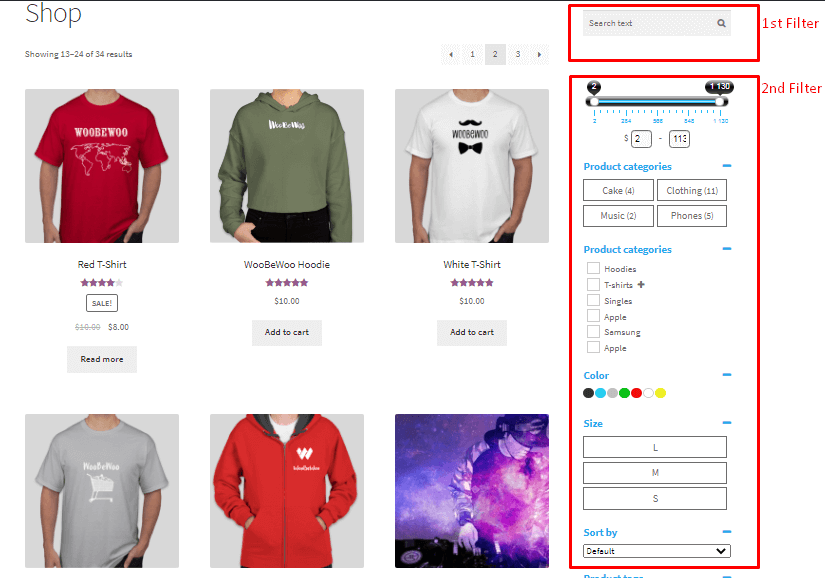
In this example, we have added two Product Filters to the page using the Sidebar widget.

So in the first Product Filter, we added the only Search by text, in the second Product Filter we added all the other elements.
This is how it looks on the frontend:
Recommendations for use
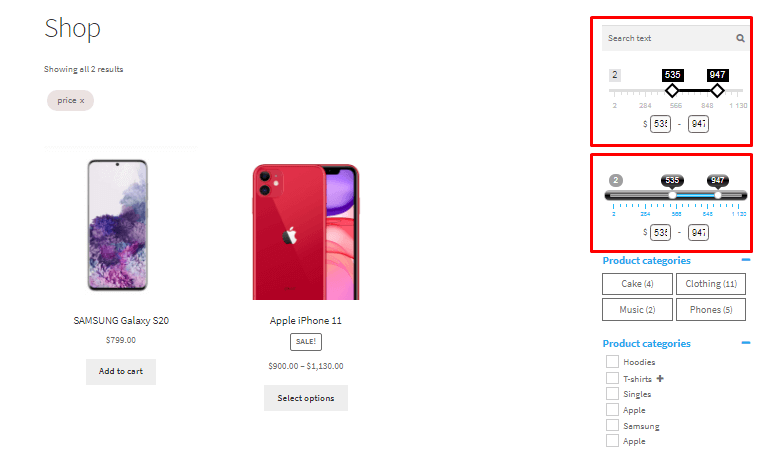
- At the same time, even if you add the same filter elements (for example, the Price in the 1st filter and the price in the 2nd filter), the search will proceed correctly, and even if you enable the AJAX option, the filters will simply duplicate each other.
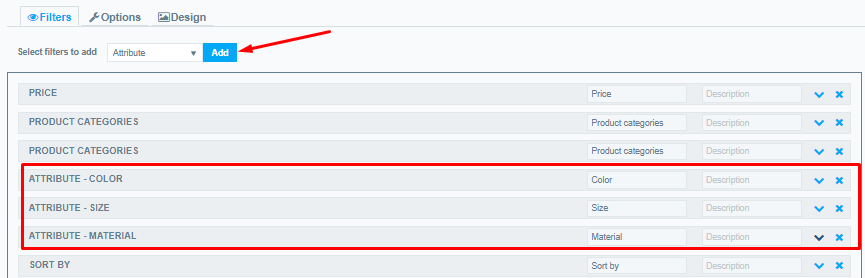
- Many plugin users do not know that you can add multiple filter elements directly to one filter. For example, you can add an unlimited number of filters by: categories; tags; attributes.
And we highly recommend adding all elements to one filter, rather than using several.
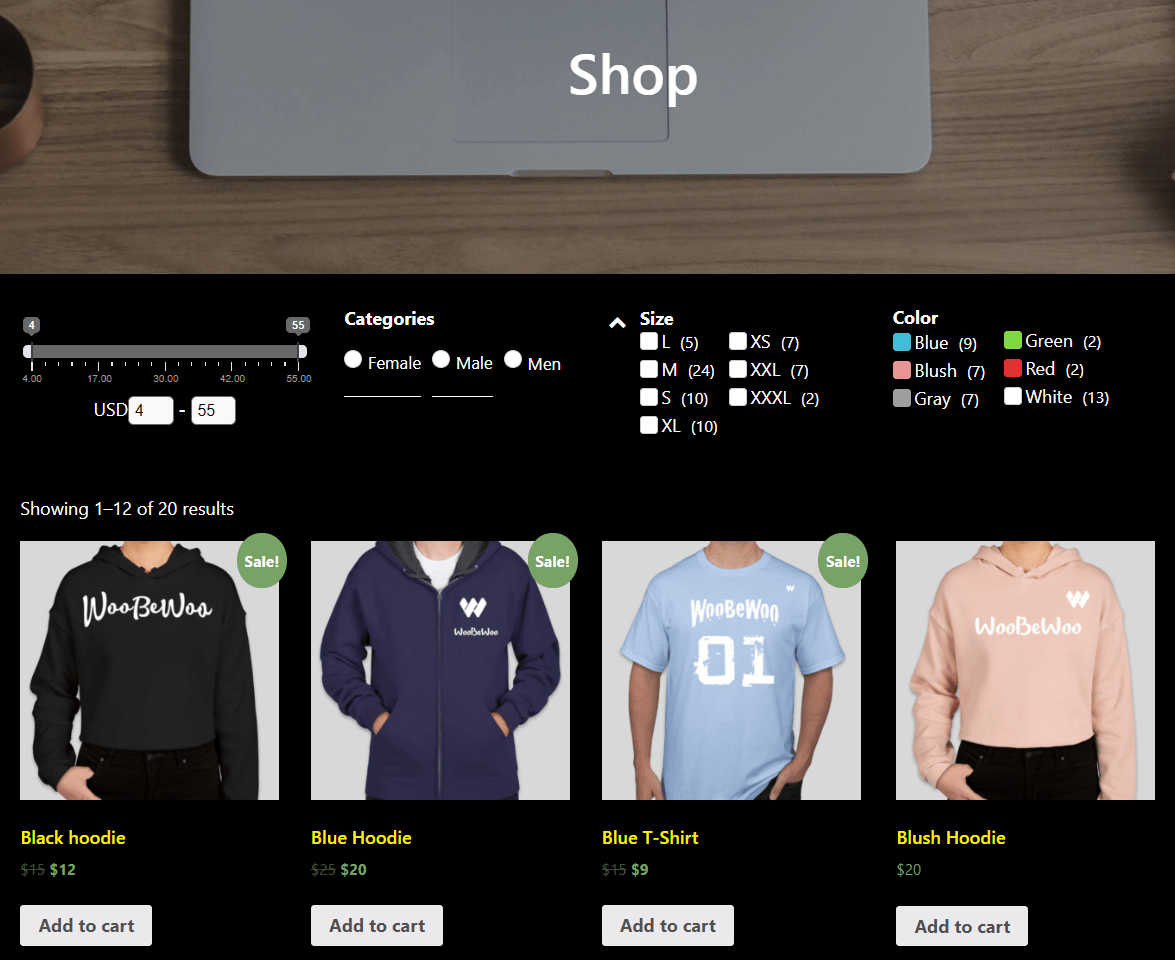
- Some users try to create a Horizontal Product Filter in this way, but we recommend not to do this as their display may be unpredictable. Check out this article to learn how to create a horizontal filter.
Check out our documentation to learn more about other WooCommerce Product Filter options.
Also, if you have any questions, please contact us and we will be happy to help you.