
WooCommerce Product Filter has a user-friendly interface. You can easily manage without any special skills. Make it stylish and effective for customers.
The plugin filters by any parameter, and displays all the options you need.
So for example, you can choose whether all the selected filter parameters will be shown, and where they will be located
This tutorial will help you deal with this.
Display Selected Parameters and Settings
By default, Display selected parameters of filters option will be turned off.
But if you wish, yo can enable this option, move to the Options >> Content tab and enable a checkbox.

Selected parameters position.
Here you may select the position of selected parameters block.(Top or Bottom)
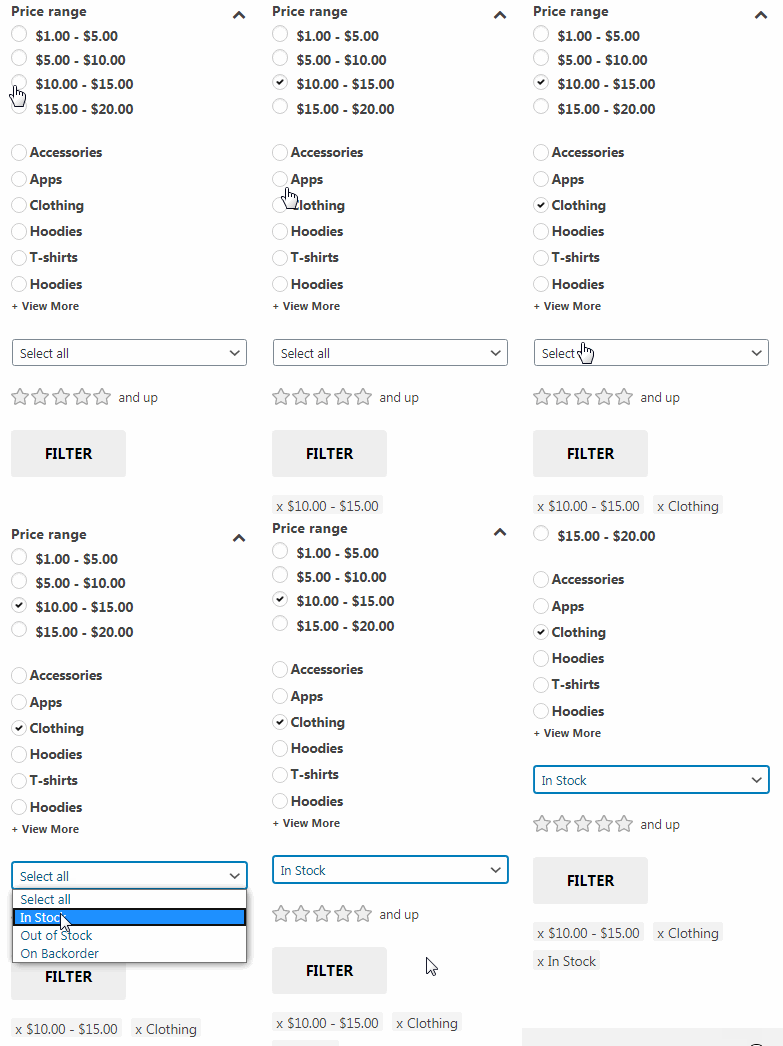
Example bottom parameters position :
Display Clear All
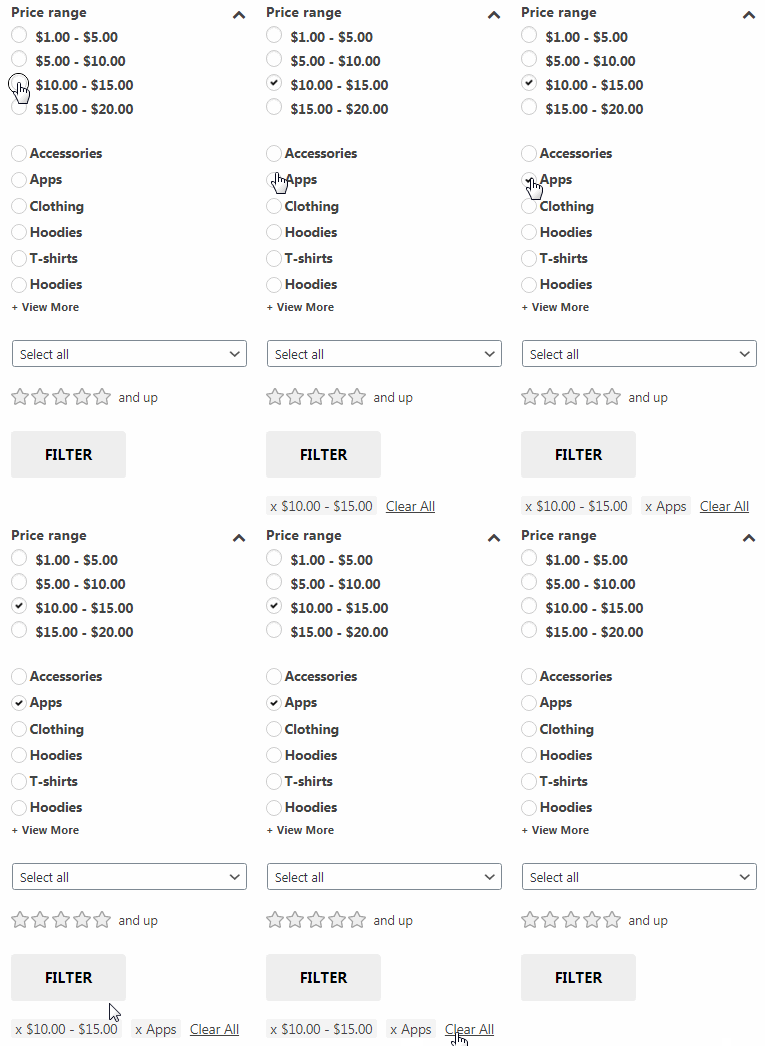
Once you have selected the filter options, you can easily hide them.
To do this, you can go to the “Options” tab and enable Display Clear All
As you can see, our plugin offers you a very functional filter with a convenient and simple interface.
Check out our documentation to learn more about other WooCommerce Product Filter options.
Also, if you have any questions, please contact us and we will be happy to help you.