
With WooCommerce Product Filter, you can style every item and parameter in your product filter. In the filter settings, you can see the design tab where you can improve the style of your filter. This menu is logically divided into 4 tabs for ease of use. This tutorial will help you improve the custom design of your product filter blocks without any programming knowledge.
Blocks Design
First, go to Design-> Blocks and select Use Custom Styles .Choose your custom styles for filter blocks. Any settings you leave blank will default.
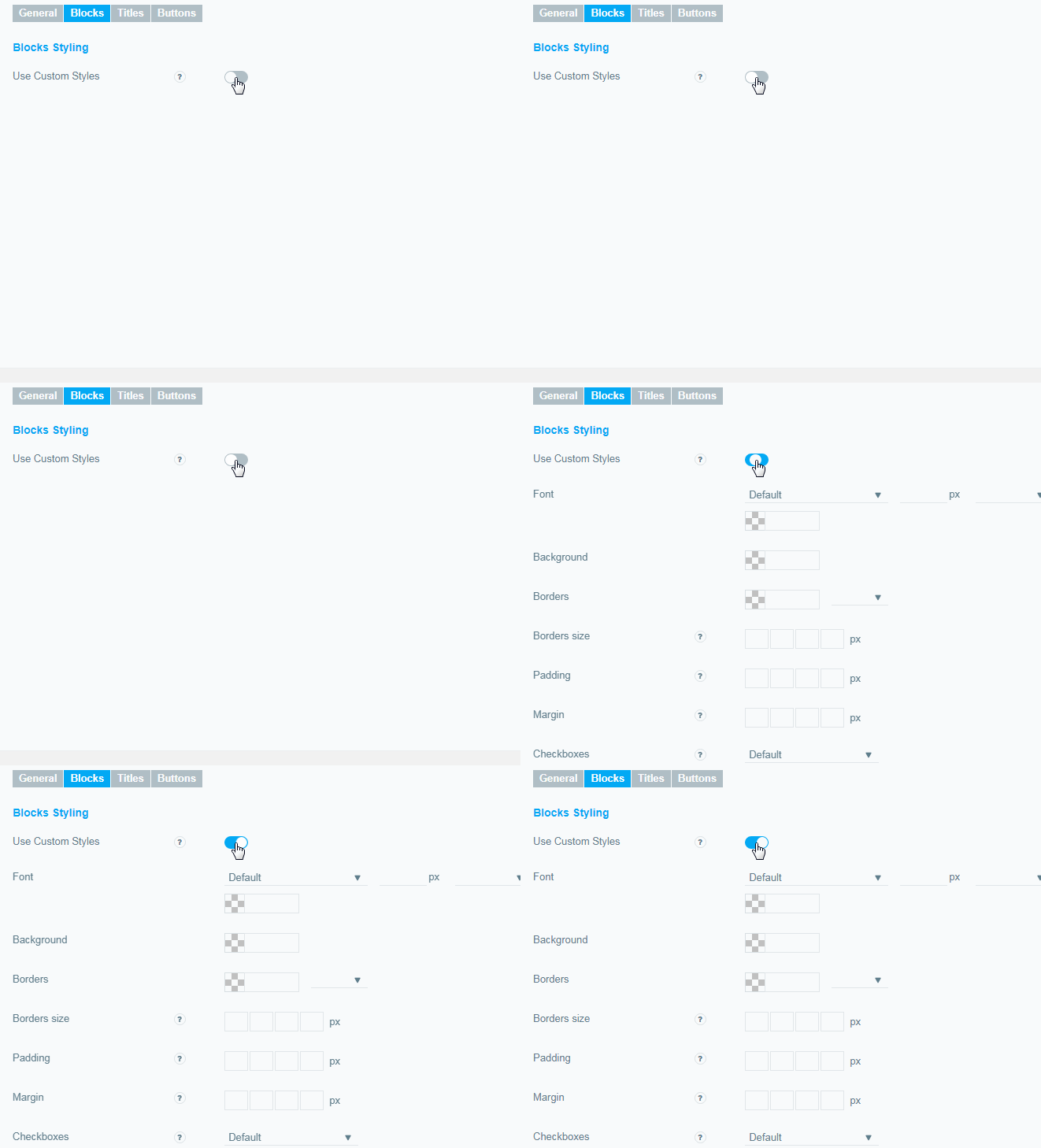
Customizing Design Blocks
Here you can select and configure the following parameters:
-
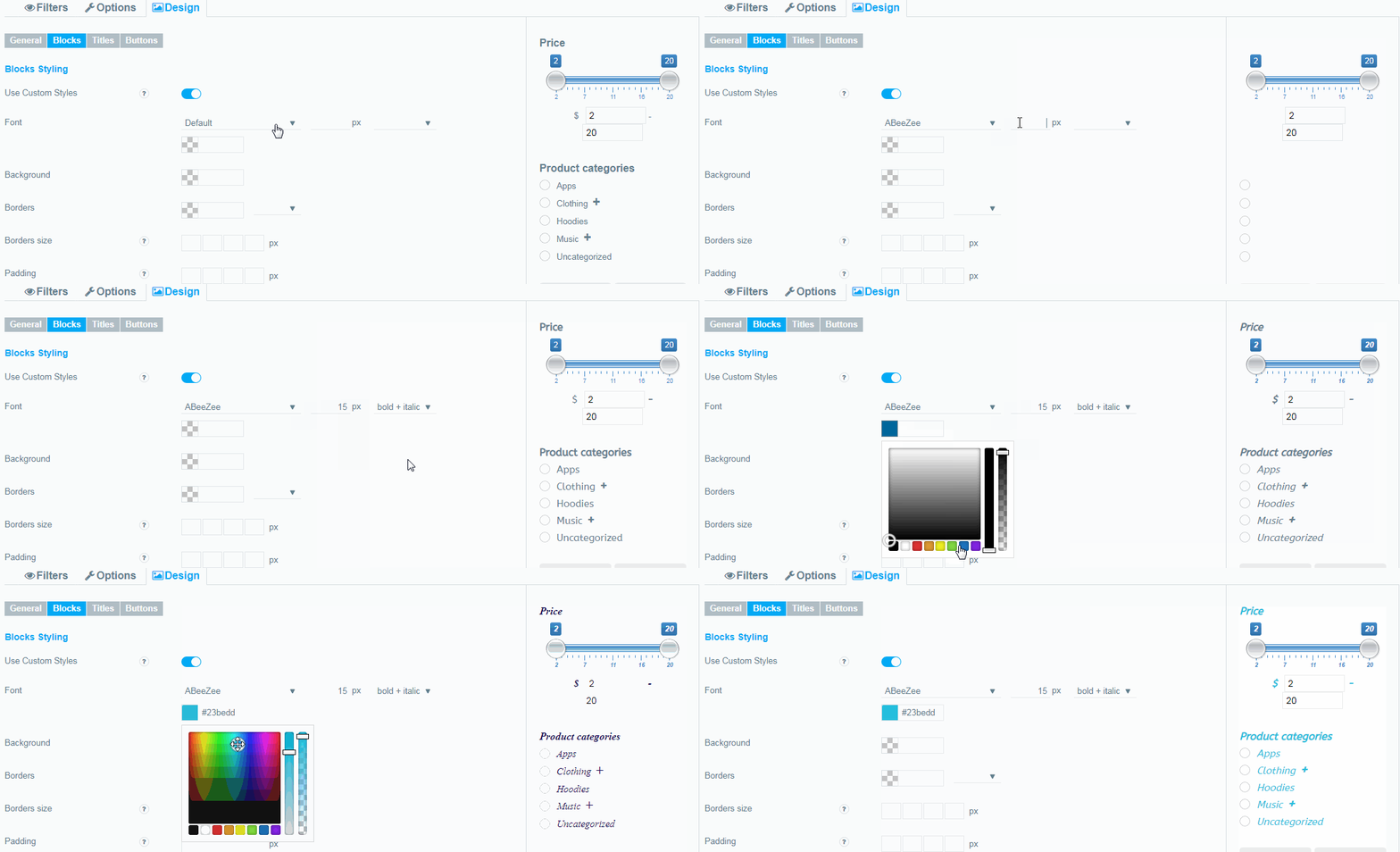
Font.
You can choose the font, font size, style and color for the blocks of your filter.
-
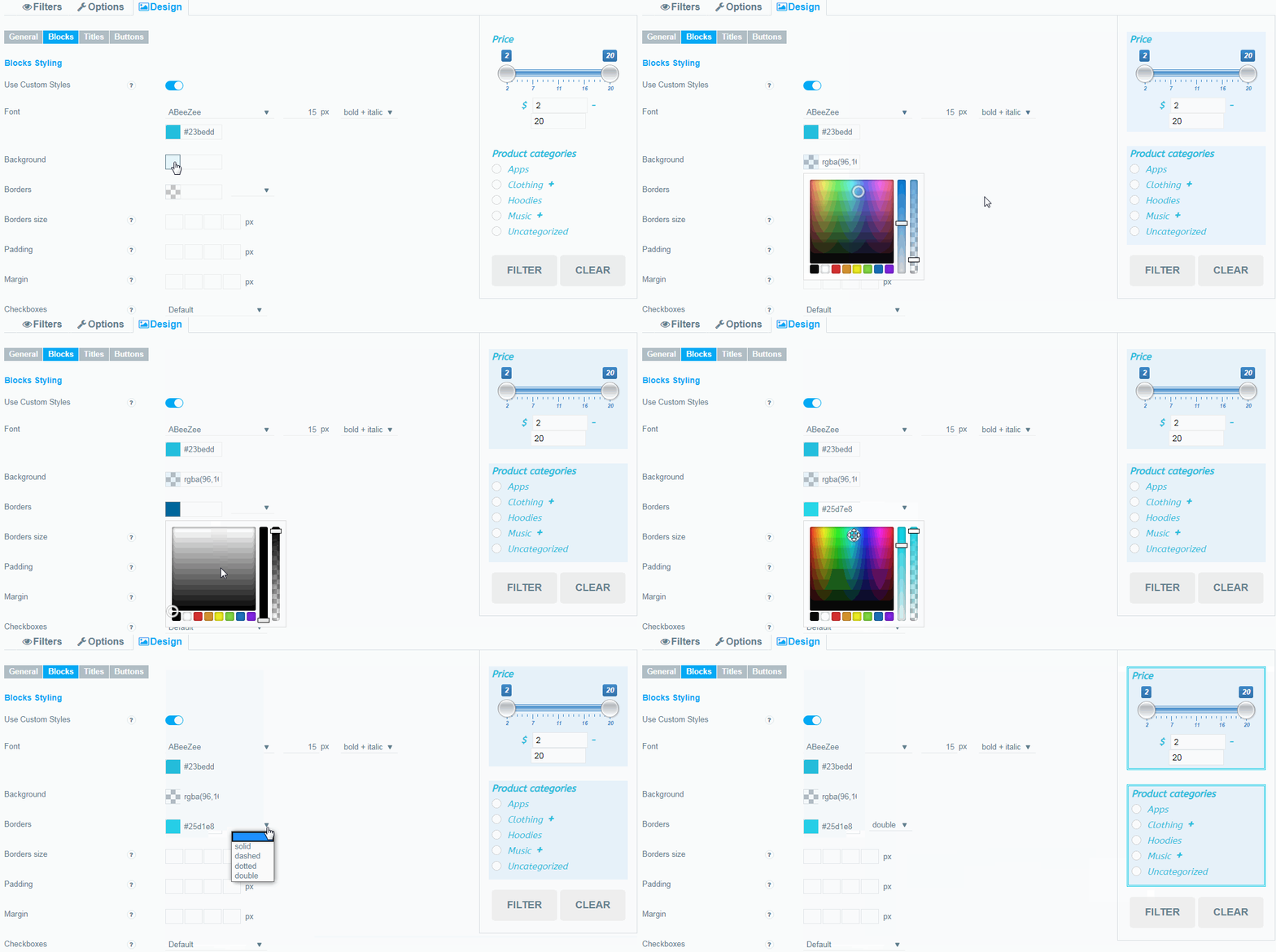
Background.
You can choose a background color for your filter blocks, leave it blank and the default setting will be applied.
-
Borders.
Set the border color and style for your filter.
-
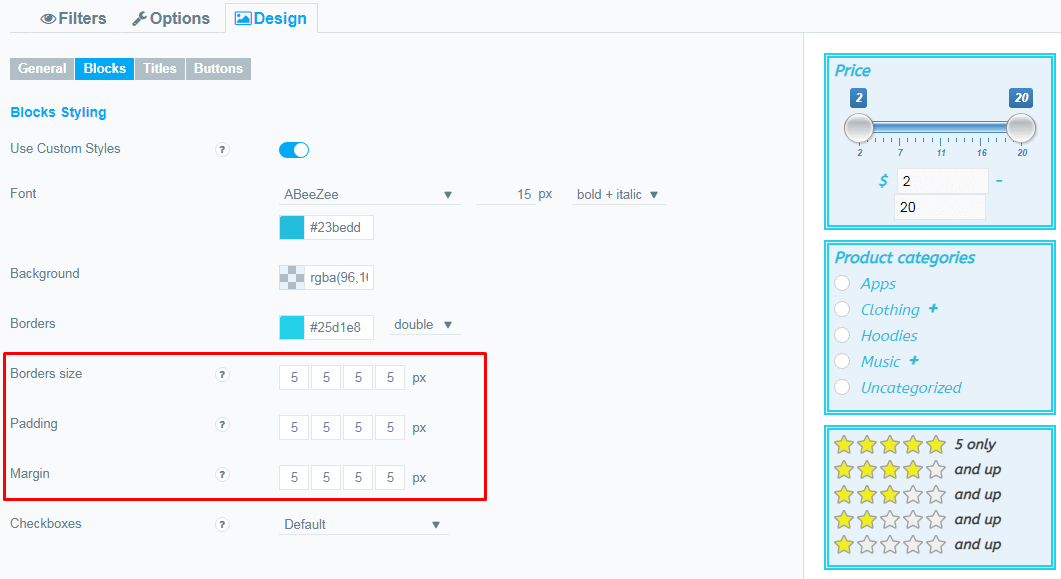
Borders size.
Here you can set borders width in this order: top, right, bottom, left.
-
Padding.
Here you can set paddings in this order: top, right, bottom, left.
-
Margin.
Here you can margins in this order: top, right, bottom, left.
-
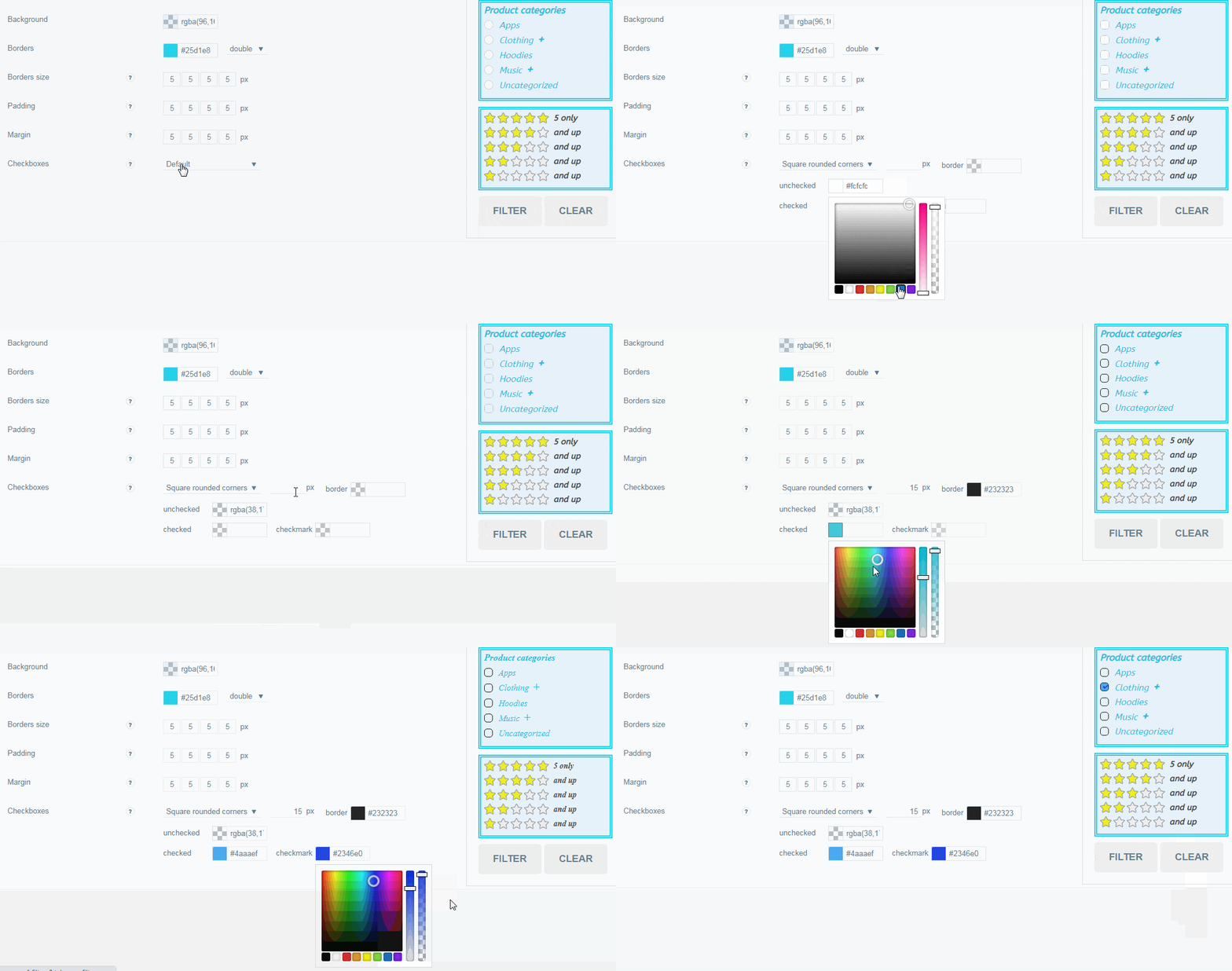
Checkboxes
Here you can styles for checkboxes:
- Select the type of checkboxes (circle;square;square rounded corners)
- Size in pixels
- Color: checked and unchecked checkbox
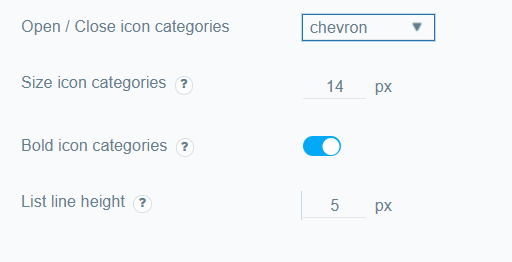
From the Open / Close icon categories dropdown, you can select the close selection icon. It can be plus/minus, chevron or angle double.
You can resize the icon for collapsing/expanding categories in the Size icon categories numeric filed.
Toggle the Bold icon categories option if you want to make category icons bold.
In the List line height option, you can adjust the line height.
Check out our documentation to learn more about other WooCommerce Product Filter options.
Also, if you have any questions, please contact us and we will be happy to help you.