
Would you like your customers can see the preview of each variant of your product? What can be better to look through the products and find exactly what you need in one table?
Customers need not navigate to the product page to look at additional photos. Just select the attribute and see how the variants look like.
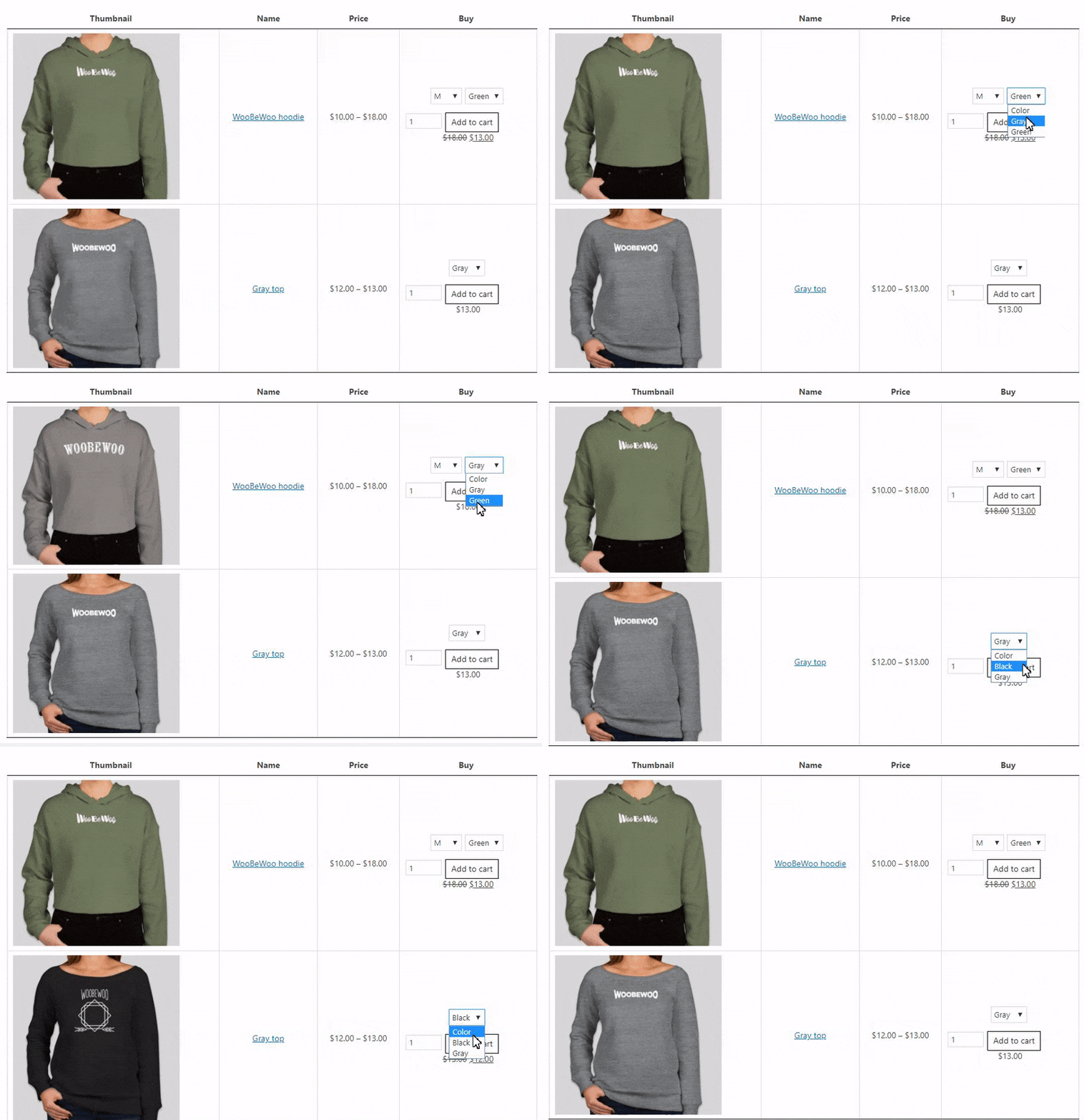
This is one of the most ideal ways to list drop-downs of options and add to cart buttons directly to product lists. It is much more flexible than displaying variations for each product. Since you significantly save space and the buyer will not scatter eyes all over the page.
Moreover, when choosing a certain option, in real-time mode, its data will also change (for example, price or image).
In order to display a selection of options in the form of drop-down lists in the buy column, you need to:
–Create a table of products.
-Add all the columns you need including Buy.
-Add the products you want, including variations.
– Select the checkbox with the “Show variation thumbnails” option, so that the product image would change depending on the selected variation in real-time, without refreshing the page. (settings->features)

If you have any questions, please contact us and we will be happy to help you.