Introduction

WooCommerce Product Tables

How to add a Product Table to a page

 Once you’ve installed the WooCommerce Product Table plugin and set the Main settings, it’s time to add product tables to a page.

To add a product table, go to the Product Table Plugin and use shortcodes from the list of tables:

Shortcode

Also,you can open Product Table and copy shortcode above the main tabs:Short
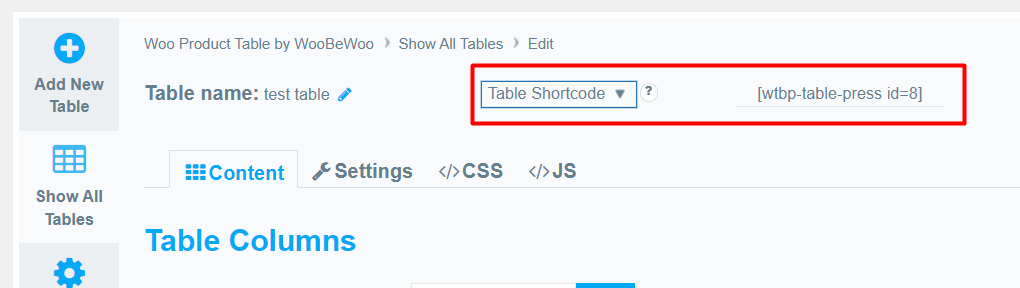
 

There are available Table Shortcode and PHP code

Copy Shortcode and paste it to your website content, then Product Table plugin will display the table you created on appropriate post/page using settings you tuned in this table.

Table PHP code can be inserted at any place of the page code – to display exactly in this place, for example in the header or footer of the page. Besides, it can be inserted in the code of template of the theme – to display on all pages.

What should you do next?

Thanks for reading till the end. Here are 4 ways we can help you grow:

Want to learn more?

Explore our full collection of How-To guides to master every feature and functionality.

Check out How-To Guides →

Looking to grow your store?

Browse our WooCommerce plugins to discover tools that can improve performance and boost your sales.

Browse WooCommerce Plugins →

Curious about related topics?

Visit our blog for more tutorials, expert insights, and the latest trends in e-commerce.

Visit Our Blog →

Still confused about this topic?

Submit your question or contact our support team directly. We are here to help!

Contact Support Team →

Latest Articles

Shopping Cart